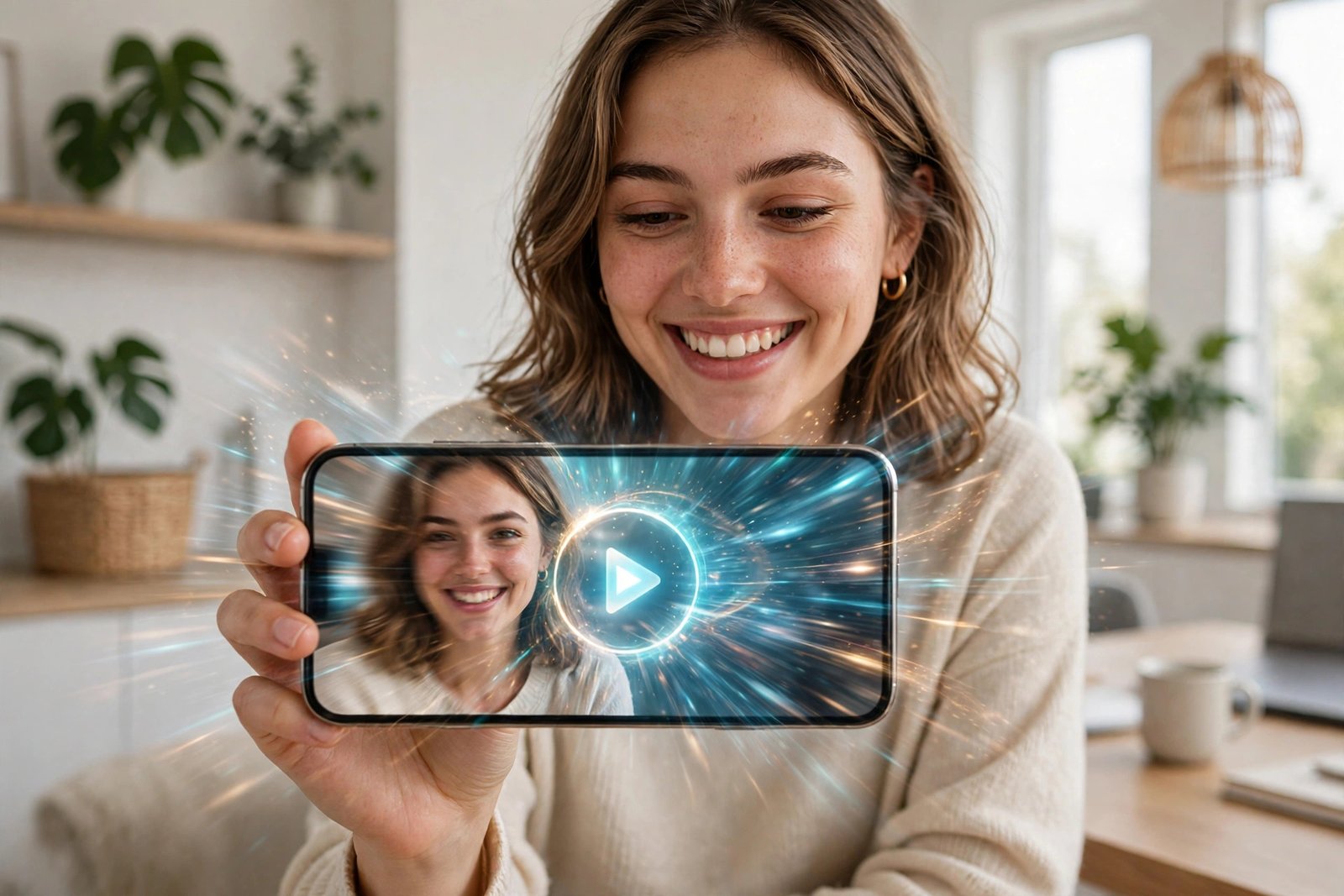
How to Make an AI Video From a Photo – Free, Step by Step
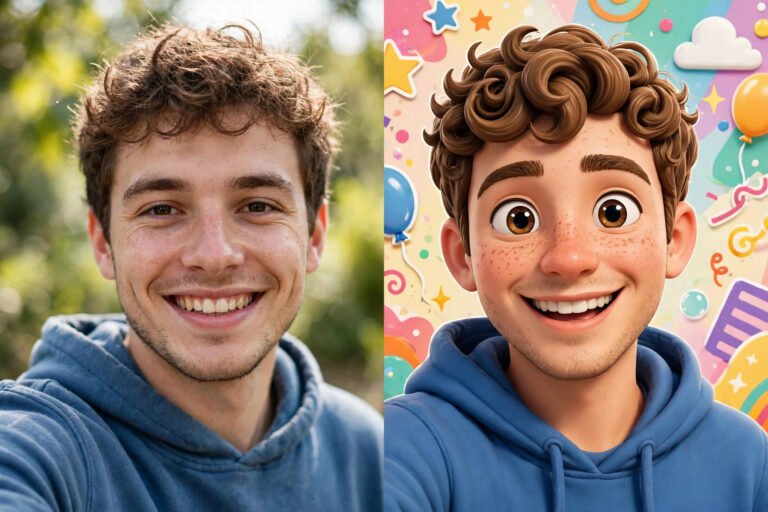
Photos are nice, but videos get the views. If you want to learn how to make AI video from photo free, you are in the right place. In 2026, free AI tools can take one still photo and turn it into a short moving video – the person smiles, the camera zooms, hair and clothes move naturally. It looks like magic, but the process is simple.
This guide shows you how to make AI video from photo using a free tool, step by step, with the exact settings and text prompts that give the best results. You need only a phone or computer and one clear photo.
Table of Contents
What You Need Before You Start
Choose one clear photo: face visible, good light, not blurry. Front-facing photos work best for people; for products and places, any sharp photo is fine. We will use a free image-to-video tool – popular free options include Kling AI, Runway’s free credits, and CapCut’s AI video features. The steps below are almost identical on all of them.

Step-by-Step: Make Your AI Video
Step 1: Open the Tool and Choose Image to Video
Open the tool’s website or app and select the “Image to Video” option (some tools call it “Animate Photo” or “Photo to Video”). This is the correct mode – do not choose text-to-video for this job.
Step 2: Upload Your Photo
Upload the photo you selected. The tool will show it as the first frame of your video. Check that the photo is not cropped in a bad way; adjust the frame if the tool allows it.
Step 3: Write a Motion Prompt
This is the secret step. Tell the AI exactly what movement you want. Good example prompts: “The woman smiles gently and blinks, soft camera zoom in, natural movement” or “Camera slowly moves forward, clouds drift, water flows”. Short and clear prompts beat long confusing ones. This prompt is the heart of how to make AI video from photo well.
Step 4: Choose Settings
Pick a 5-second duration for free plans, vertical 9:16 size for Reels, Shorts and TikTok, or horizontal 16:9 for YouTube. If there is a “creativity” slider, keep it in the middle – too high makes faces change, too low makes almost no movement.
Step 5: Generate and Download
Press Generate and wait one to three minutes. Watch the result fully before downloading. If the face looks strange, lower creativity and generate again. Download in the highest quality the free plan allows. That is the complete process of how to make AI video from photo – upload, prompt, settings, generate.
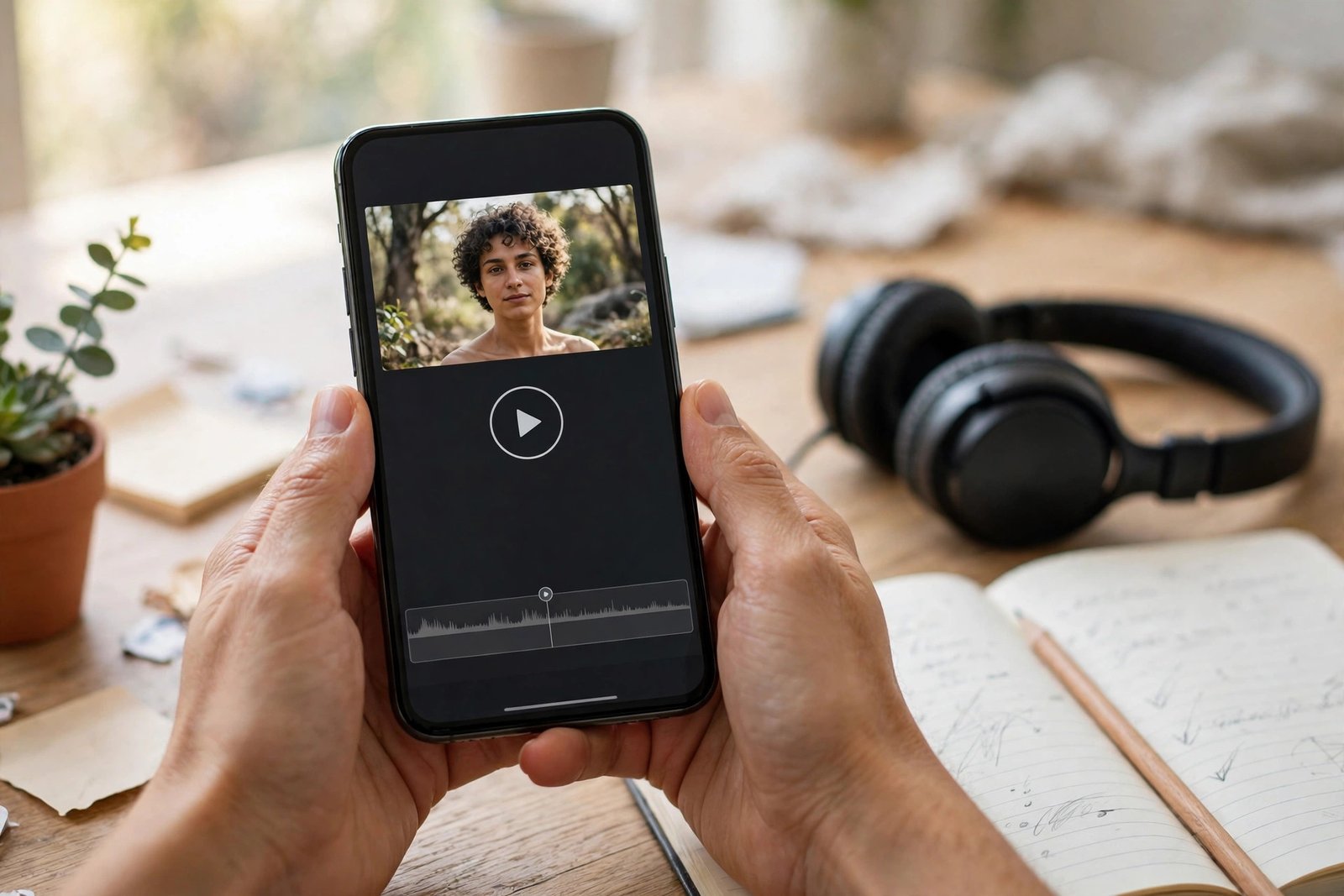
5 Prompts That Give Great Results
1. For portraits: “Natural smile, gentle blinking, slight head movement, slow zoom in”
2. For old family photos: “Bring this photo to life, soft natural movements, warm feeling”
3. For products: “Slow cinematic rotation, studio light reflections, premium look”
4. For nature photos: “Clouds moving, leaves swaying in wind, river water flowing”
5. For buildings and places: “Slow drone-style forward movement, people walking naturally”
Common Mistakes to Avoid
Do not use blurry or very dark photos – the AI copies the quality it sees. Do not ask for too much action in 5 seconds; one or two movements look real, ten movements look fake. And do not upload photos of other people and publish them without their permission.
Frequently Asked Questions
Is it really free?
Yes, the tools named here give free daily credits or a free trial amount. A normal user can make several short videos free every day or week, depending on the tool.
How long can the free video be?
Most free plans make 5-second clips. You can join two or three clips in a free editor like CapCut to make a longer video.
Why does the face change in my video?
The creativity setting is too high, or the photo is low quality. Use a clearer photo and keep creativity in the middle range.
Final Words
Now you know how to make AI video from photo free, from picking the photo to writing the perfect prompt. Start with one favourite photo today, use the portrait prompt from this guide, and watch it come alive.
For more creative guides, explore our AI Tools Guides section – and if any step confuses you, reach us through our Contact Us page.