

How to Remove Background From a Photo Free in 1 Minute
Do you want to know how to remove background from photo free, without Photoshop and without paying anything? Good news: in 2026 you can do it in about one minute, right in your browser or phone. Product sellers, students, job seekers and social media users need clean photos every day – and a messy background ruins an otherwise perfect picture.
In this guide you will learn how to remove background from photo free using the easiest method that works for almost everyone, plus two backup methods for special cases. No software installation, no design skills, and no watermark traps if you follow the steps carefully.
Table of Contents
What You Need Before You Start
You only need three things: the photo on your phone or computer, an internet connection, and one free background remover tool. For this guide we use remove.bg, the most popular free option, but the same steps work on similar tools. Choose a clear photo where the person or product is sharp and well lit – clean input gives clean output.

Method 1: Remove Background Online in 1 Minute (Easiest)
Step 1: Open the Free Tool
Open your browser and go to remove.bg. You will see a big upload button on the homepage. There is nothing to install and no account needed for a basic free removal.
Step 2: Upload Your Photo
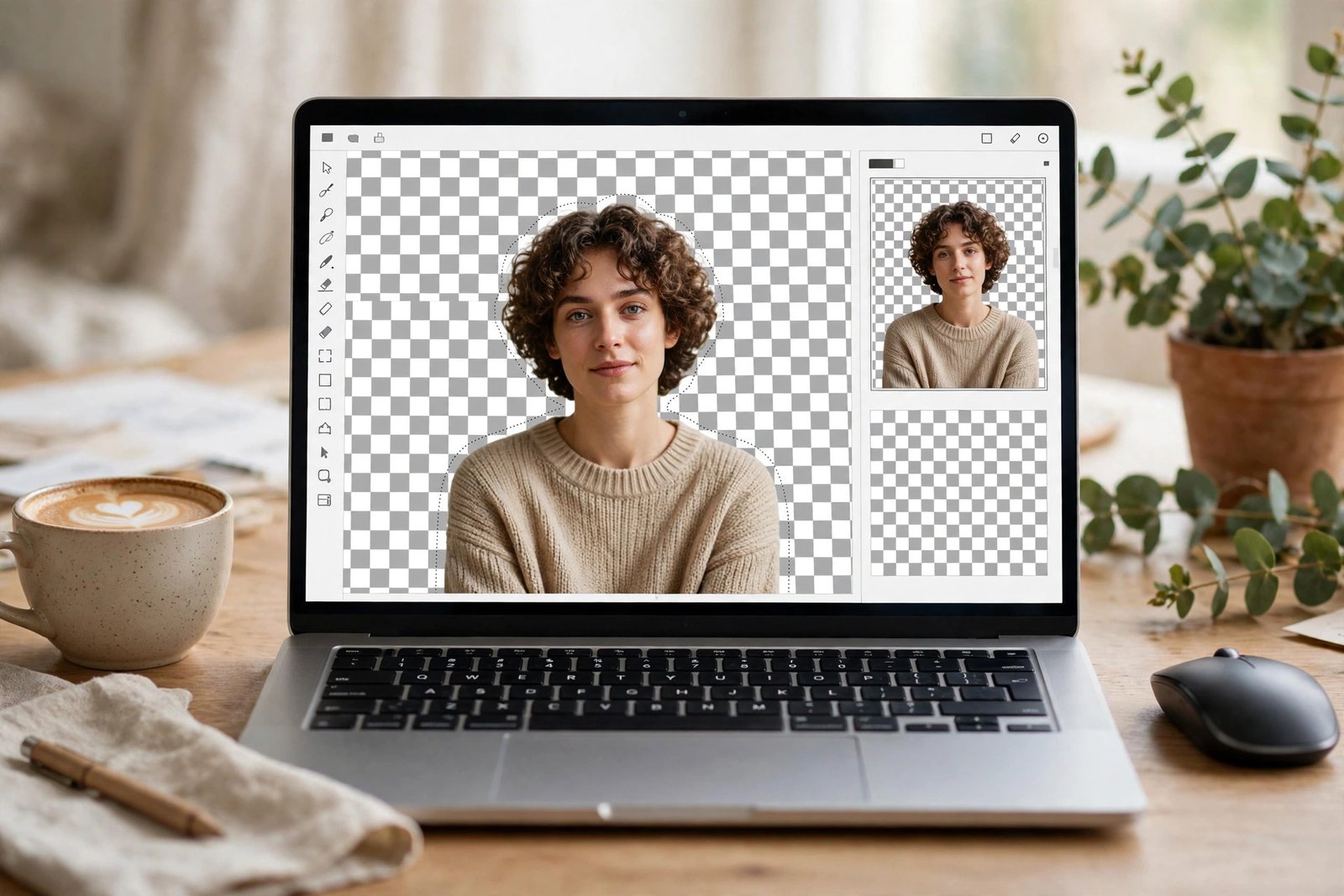
Click Upload Image and select your photo. In a few seconds the tool’s AI finds the person or object, separates it from the background, and shows you the result on a transparent checkered background.
Step 3: Check the Edges
Zoom in and look at hair, fingers and product edges. Good AI keeps these natural. If a small part is wrong, use the Erase/Restore brush on the site to fix only that area instead of starting again.
Step 4: Download Your Image
Click Download. The free download is a smaller size, which is perfect for WhatsApp, Facebook, online shops and profile pictures. This is the complete process of how to remove background from photo free – upload, wait, check, download.
Method 2: Remove Background on Mobile Apps Free
If you mostly work on your phone, free apps can do the same job. Canva’s mobile app has a background remover in some plans, and free apps like PhotoRoom give a limited number of free removals that are excellent for product photos. The steps are the same everywhere: import photo, tap Background or Remove BG, wait for the AI, then save as PNG so the transparency stays.
Method 3: Free Tools for Many Photos
If you sell products online and need many photos cleaned, try free batches on tools like Photoroom’s web version or Adobe Express’s free background remover. Free plans have daily or size limits, so clean your most important product photos first. This is still how to remove background from photo free – just planned in batches.
5 Tips for a Perfect Clean Photo
1. Use a photo with good light – shadows confuse the AI.
2. Keep a clear gap between the subject and the background.
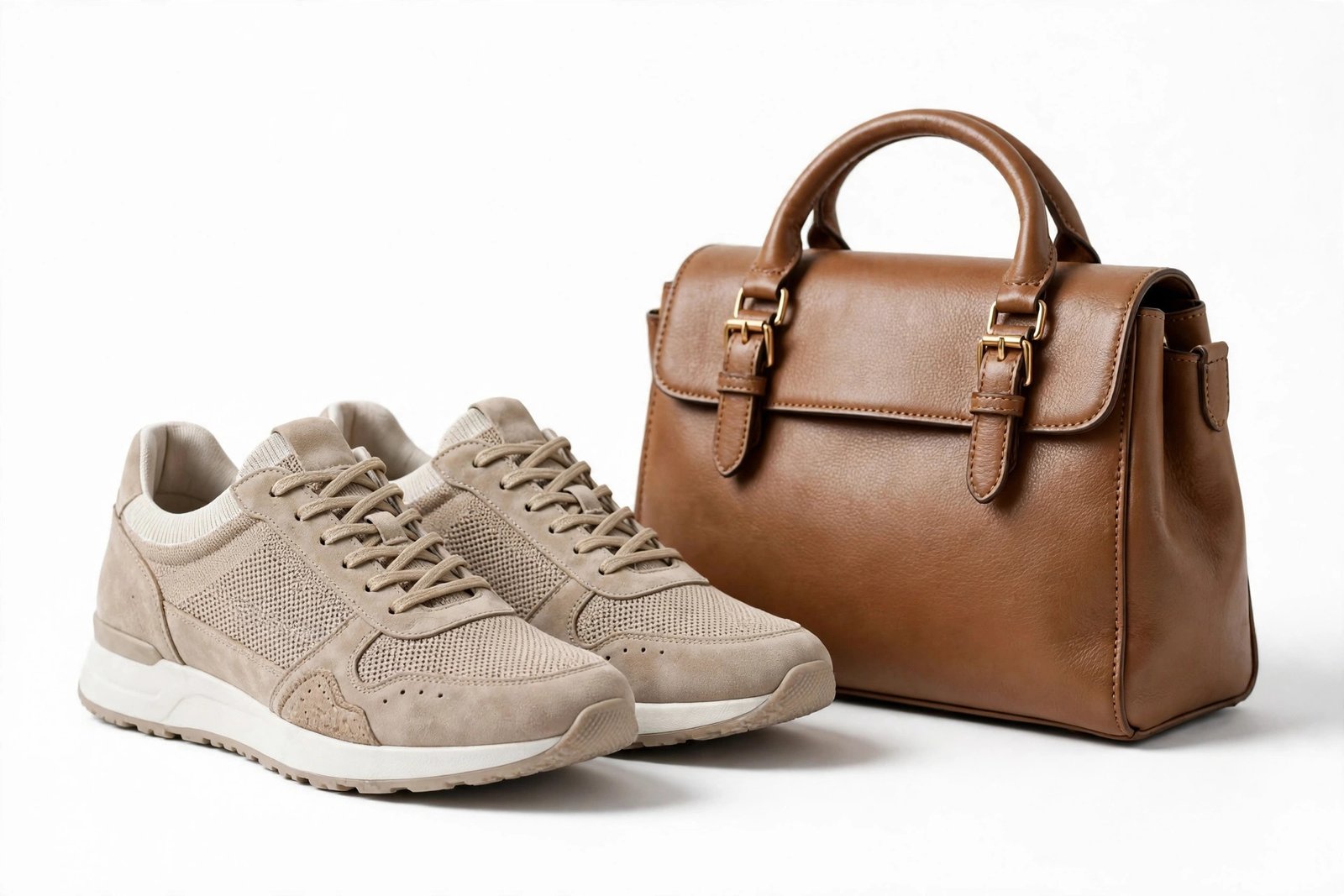
3. For products, shoot on a plain table or bedsheet.
4. Always save the final file as PNG, not JPG, or the transparent background will turn white or black.
5. After removal, add a soft white or light background if the photo will go on a shop or ID-style document.
Common Problems and Quick Fixes
Hair looks rough: use the restore brush on low size and go slowly. Wrong part removed: restore that area manually instead of re-uploading. Photo looks small after free download: free plans limit size – for social media and shops this size is normally enough; for printing, take the photo in the highest quality your phone allows.
Frequently Asked Questions
Is it really free, or is there a hidden payment?
The basic removal on remove.bg is free without an account. You only pay if you want full HD downloads or bulk business features. For normal use, free is enough.
Which file type should I download?
Always PNG. PNG keeps the transparent background. JPG cannot store transparency, so your removed background will come back as a solid color.
Can I remove the background of a group photo?
Yes, the AI keeps all clear people in the photo. It works best when faces are visible and nobody is hidden behind another person.
Final Words
Now you know exactly how to remove background from photo free – it honestly takes about a minute once you try it. Use Method 1 for single photos, your phone app for daily social media work, and batch tools when you have many product pictures.
Want more useful guides like this? Explore our AI Tools Guides section, and if you get stuck on any step, ask us through our Contact Us page.